Disclaimer:
Some steps or configurations described in this post may incur charges when using AWS services. It is your responsibility to review AWS pricing and monitor your usage. After testing, ensure that all resources are properly deleted to avoid unexpected charges. Always use the AWS Free Tier where applicable and test responsibly.
1. Create an ECS Cluster
Go to AWS ECS Console -> Clusters -> Click Create Cluster. I named it ora-cls.
Choose AWS Fargate (serverless).
Click Create.
Cluster creation can be monitored in CloudFormation under Stacks.
2. Create a Task Definition for Oracle
Go to AWS ECS -> Task Definitions -> Click Create New Task Definition. I named it OraXE.
Choose AWS Fargate and unique task definition family name.

Configure the container –
– Container Name: orax213
– Image: XE image in your ECR repository. Check here how to add Docker image to ECR Repository.
– Memory: 3GB
– Port Mapping: 1521 (TCP)

Under Environment variables set the following key – ORACLE_PWD with value ‘oracle’. This is sys password for the Oracle XE database.

The rest can be left as it is. Click Create Task Definition.
3. After creating the task definition, now task can be run from this definition.
Go to ECS Clusters -> Task definitions and select the OraXE. From the menu for Task definition, select Deploy and then just click ‘Run task’.
The ‘Create’ dialog is shown and ora-cls cluster is selected (as there are no other cluster), you can select another cluster if you have more than one.
In ECS, clusters and task definitions are separate entities, but when you run a task (or create a service), you specify the cluster in which the task will run.
Leave all settings as they are – for this exercise no need to make any additional storage or network changes.
Click on Create.

Task status can be seen under Clusters -> <cluster name> -> Tasks
Now, Oracle is running fully managed inside ECS.

You might check the task logs – under Logs tab for the task – to see any unusual/errors by task start
4. Connect to the container
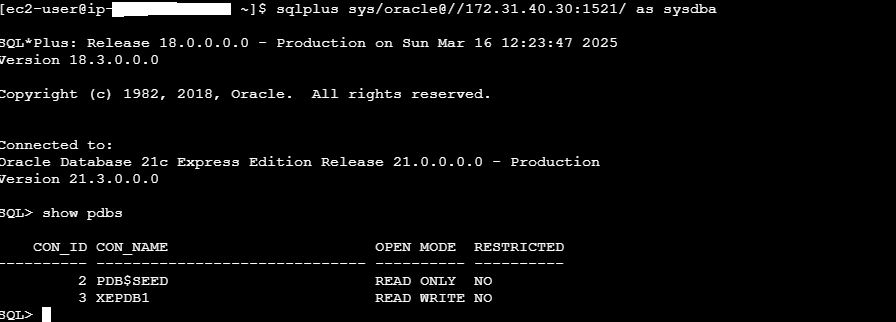
There are different ways to connect to the container – I will use one small EC2 instance in the same VPC running Amazon Linux and Oracle instance client installed on it.
Do not forget to change the security group associated with your Fargate task – add inbound rule allowing 1521 port from the security group of the EC2 instance.
You can directly select Type Oracle-RDS – it is for port 1521 .
Get the container private IP – under Networking settings for the running task.
sqlplus sys/Oracle123@//<Fargate Private IP>:1521/XEPDB1 as sysdba
Happy clouding!